Printing from Odoo costs more time than most teams realize. Every invoice, picking slip and delivery order goes through the same cycle: click print, wait for the PDF to download, open the file, go to File → Print, select the correct printer, click print again. Six steps. Every document. Every day.
Take a single team member who prints 10 documents a day. That is 60 manual steps, and none of them involve accounting, warehousing or customer service. They are friction. Moreover, for teams that print 50 or 100 documents a day, the time cost adds up fast.
This article shows where the hidden cost lives. It also shows how one-click direct printing removes it.
The six-step cycle of printing from Odoo
The default Odoo print process looks like this:
- Open the document in Odoo (invoice, delivery order, picking slip)
- Click the Print button
- Wait for the PDF to generate and download
- Open the PDF in your PDF viewer or browser
- Select the correct printer from the printer list
- Click Print
Step 6 produces the paper. However, steps 2 through 5 produce nothing. They are pure overhead, and you repeat them for every document.
For example, on a 60-document day, steps 2–5 run 60 times. At 30 seconds per cycle, that is 30 minutes of overhead every day. That time does nothing except bridge the gap between Odoo and a printer.
Who pays the highest cost of printing from Odoo
Warehouse and logistics teams print picking slips, delivery orders and shipping labels continuously throughout the working day. Every document interrupts the pick-pack-ship flow. Workers move between Odoo, the file download, the PDF viewer and back. The interruption is small for each document. However, it adds up across hundreds of prints per week.
Finance and accounting teams face the same overhead at scale during end-of-month invoice runs. Printing 80 invoices for a monthly batch means 80 separate download-open-print cycles. As a result, many teams export batches to PDF by hand and print from outside Odoo entirely. That brings its own reconciliation errors.
Sales and customer service teams print quotations and order confirmations while a client waits, so they feel the friction sharply. The download-open-print cycle breaks the flow of a customer-facing talk at exactly the wrong moment.
Three more problems when printing from Odoo
Wrong printer selection.
In environments with several printers, such as an office printer, a label printer and a warehouse printer, users must pick the correct printer every time. In a busy operation, this causes steady print errors. For example, invoices go to the label printer, and labels go to the office printer.
Shared workstation inconsistency.
On shared workstations, the system does not keep printer preferences. Because of this, every user picks a printer again on every print job.
Batch printing is not really batching.
To print several invoices or delivery orders in Odoo, you repeat the full download-open-print cycle for each one. The default Odoo workflow has no genuine batch direct print.
What one-click direct printing means for printing from Odoo
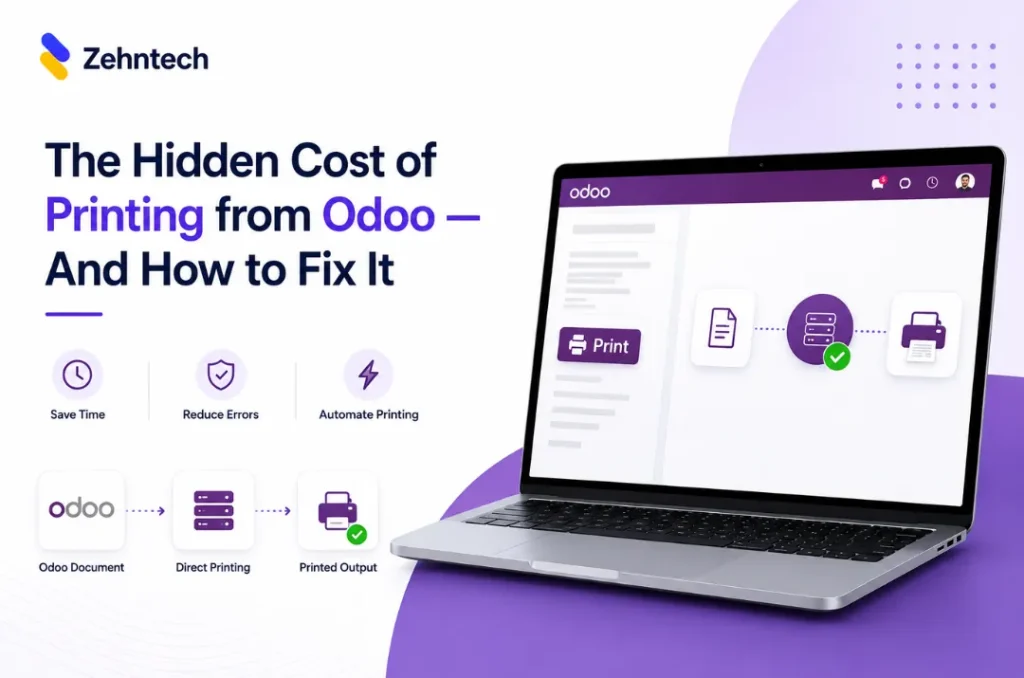
With one-click direct printing, clicking Print in Odoo sends the document straight to a pre-configured printer. There is no download, no file opening, no printer selection dialog and no extra step.
The document goes from Odoo to the printer tray. One click. The cycle is reduced from 6 steps to 1.
It also means that routing rules decide which printer gets which document. Invoices go to the office printer. Delivery slips go to the warehouse printer. Labels go to the label printer. You set this up once in Odoo settings, and then every print goes to the right place automatically, for every user.
How the Zehntech Odoo Direct Print App Works
The Zehntech Odoo Direct Print app is a free Odoo module that connects Odoo to your printers through the PrintNode API. PrintNode is a cloud printing service. First, you create a free account at printnode.com. Then you install the PrintNode client on the computer connected to your printer and get your API key. After that, enter the API key in Odoo Settings, and your printers appear in Odoo automatically.
From that point, you open any Odoo document and click print. The document then goes straight to your configured printer. You need no download, no dialog and no printer selection.
PrintNode’s free tier supports up to 50 pages per month. Paid plans start from $5/month for higher volumes.
Frequently Asked Questions
Which Odoo versions does the Direct Print app support?
The Zehntech Odoo Direct Print app supports Odoo v16, v17, v18, and v19 — across Odoo Online, Odoo.sh and On-Premise.
Does this require a PrintNode account?
Yes. The app uses the PrintNode API. You need a free PrintNode account (printnode.com) and the PrintNode client installed on the computer connected to your printer. PrintNode’s free tier covers 50 pages per month — paid plans start from $5/month.
Which printers are supported?
Any printer connected to a computer running the PrintNode client — USB, network and cloud-connected printers. If your printer works on the computer, it works with this app.
What support is included?
You receive 90 days of free support from odoo-support@zehntech.com — covering installation, PrintNode setup, printer configuration and routing rules.
The Easiest Operations Win in Your Odoo Stack
The download-open-print cycle is not a feature. It is friction. It costs time with every document, it adds up across every team member, and it causes print errors that you can avoid. If you want to learn more, see our Odoo apps.
Custom Odoo direct printing integration development: $1,000–$3,000+. Zehntech Odoo Direct Print: Free.
Install the Odoo Direct Print App — Free → https://apps.odoo.com/apps/modules/19.0/zehntech_direct_print
Working on Odoo?
Talk to the engineers who build Odoo systems and apps every day.