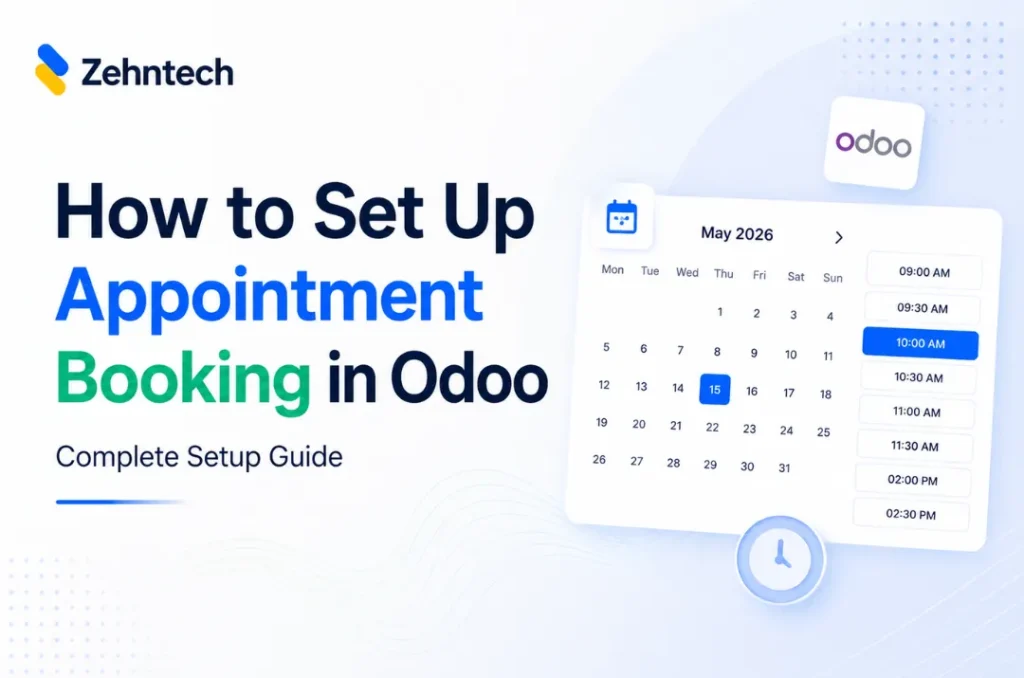
Setting up Odoo appointment booking does not require a developer or a third-party scheduling tool. The Zehntech Zehntech booking app for Odoo gives you a live 24/7 booking page, real-time calendar sync, and automated confirmations — all inside your existing Odoo instance.
This guide is for business owners, Odoo administrators, and operations managers setting up appointment booking for the first time. By the end, you will have a shareable booking URL live and connected to your Odoo calendar.
Estimated setup time: under 10 minutes.
Prerequisites — What You Need Before You Start
- Odoo version: v16, v17, v18, or v19 — all supported
- Deployment: Odoo Online, Odoo.sh, or On-Premise — all compatible
- Required modules: Discuss (mail), Website, and Calendar — all standard Odoo modules, no extra installation needed
- Admin access: rights to install apps and configure calendar settings
- Time required: under 10 minutes for the booking page to go live
Step 1 — Install and Configure Odoo Appointment Booking
Install the app from the Odoo App Store. Navigate to Apps in your Odoo backend, search for appointment_booking_ce, and install it. No server restart required.
Set up your appointment types. Once installed, navigate to the Appointment Booking configuration screen. Create your first appointment type:
- Service name (e.g. Discovery Call, Strategy Session, Support Appointment)
- Duration (e.g. 30 minutes, 60 minutes)
- Buffer time between appointments (e.g. 10 minutes)
- Advance notice required (e.g. minimum 2 hours before booking)
Configure staff availability. For each team member offering appointments, set their available hours and days. The app blocks out unavailable times automatically. As a result, customers can only book into open slots.
Booking rules and form questions
Set your booking window and cancellation policy. Define how far in advance customers can book (e.g. up to 60 days ahead) and your cancellation rules (e.g. cancellations allowed up to 24 hours before). The app automatically blocks customers who try to book or cancel outside these rules.
Add custom booking form questions. Ask customers for anything you need before the appointment — company name, topic, specific questions, or any other pre-appointment information. Odoo stores the answers with the booking.
Step 2 — Publish Your Booking Page
Once you configure your appointment types and availability, the app generates your booking page URL automatically.
Share your booking URL. Copy the link and add it to:
- Your website (contact page, services page, footer)
- Email signature
- WhatsApp business profile
- LinkedIn bio
- Social media posts
Customers who click the link see your available slots in real-time, in their local time zone. The app supports multiple time zones. For example, customers in different countries see availability adjusted for their location.
Country-based restrictions. If your service covers only specific countries, you can set country-based booking restrictions. Then customers outside your permitted countries cannot book.
Publish or unpublish your booking page. You can take your booking page offline at any time, for example during holidays or high-volume periods. Then republish it when you are ready.
Step 3 — Automate Everything
With your booking page live, the system handles everything from here. First, look at what happens at booking.
When a customer books:
- The app sends a confirmation email automatically to the customer and the assigned staff member
- The booking appears in the Odoo calendar in real-time — no manual entry
- The app links the booking to the customer’s Odoo contact record immediately
Reminders. Configure reminder notifications at intervals you choose — 24 hours before, 2 hours before, 1 hour before. The app sends them automatically. As a result, no-show rates drop significantly compared to manual follow-up.
Customer rescheduling and cancellations. Customers can reschedule or cancel their own appointments through the booking link, within the cancellation policy you set. The Odoo calendar then updates automatically, so your staff do not need to step in.
After the appointment. The booking stays linked to the customer record in Odoo. You can log call notes, create an invoice, or schedule a follow-up directly from the same record. Also, you see the booking history alongside all other Odoo CRM and communications data.
What to Check After Your First Booking
- Open your Odoo calendar and confirm the test booking appears
- Check that the confirmation email was received (check the email address you used to test)
- Verify the booking is linked to the correct customer record in Odoo Contacts
- Test rescheduling through the customer-facing booking link — confirm the calendar updates
Troubleshooting — Common Questions
Which Odoo versions does the Appointment Booking app support?
The Odoo Appointment Booking app supports Odoo v16, v17, v18, and v19 across all deployment types — Odoo Online, Odoo.sh, and On-Premise. All four versions are fully tested and supported.
Can I customise the booking window and availability rules?
Yes. You can define booking windows, buffer times between appointments, advance notice requirements, and availability rules per service and per staff member. Country-based booking restrictions are also supported.
Can a customer book multiple appointments at the same time?
Yes. The app supports multiple bookings per customer. You control whether simultaneous bookings are permitted through your availability and booking window configuration.
Your Odoo appointment booking page is live
Once you share your booking URL, customers can schedule 24/7 without calling or emailing your team. Meanwhile, the Odoo calendar updates in real-time. The app sends confirmations and reminders automatically. Finally, every appointment links to the customer record for invoicing and follow-up.
Custom appointment booking development: $3,000–$8,000. Zehntech Odoo Appointment Booking: $100.00 one-time. 90 days of free support included.
Install the Odoo Appointment Booking App — $100.00 one-time
→ https://apps.odoo.com/apps/modules/19.0/appointment_booking_ce
Working on Odoo?
Talk to the engineers who build Odoo systems and apps every day.