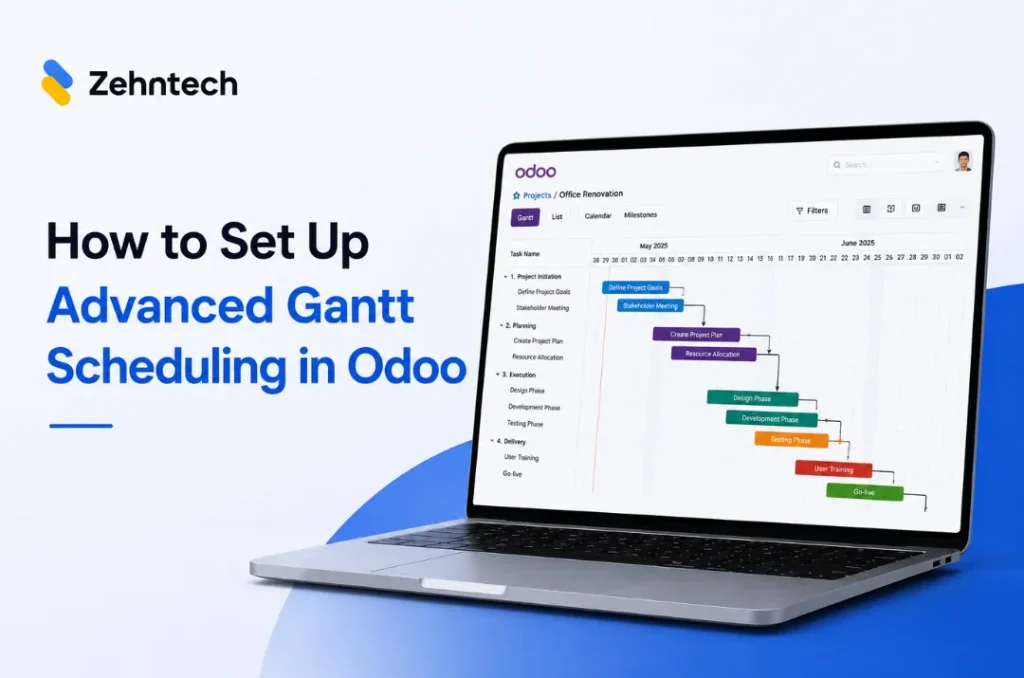
Advanced Gantt scheduling inside Odoo does not require exporting to MS Project or maintaining a separate timeline tool. The Zehntech Odoo Advanced Gantt App for Project adds dependency types, automatic cascade, critical path visualization, resource workload management and baseline tracking to your existing Odoo projects — in under 10 minutes.
Also, this guide is for project managers, PMOs, and Odoo administrators setting up advanced Gantt scheduling for the first time. By the end, your projects have dependency-aware Gantt charts, a visible critical path, and team workloads you can balance before they become missed milestones.
Estimated setup time: under 10 minutes.
Prerequisites — What You Need Before You Start
- Odoo version: v16, v17, or v18 — all supported across all deployment types (Online, Odoo.sh, On-Premise)
- Required modules: Project, Discuss (mail), and Employees — all standard Odoo modules, no additional installation needed
- Admin access: rights to install apps from the Odoo App Store
- No external tools required: the app is fully self-contained — no base Gantt module, no third-party integrations
Step 1 — Install the App
Navigate to Apps in your Odoo backend. Search for zehntech_advanced_gantt_app_project and install it. No server restart required.
After you install it, the Advanced Gantt view becomes available inside any Odoo project — accessible via the view selector alongside the standard list, kanban and calendar views.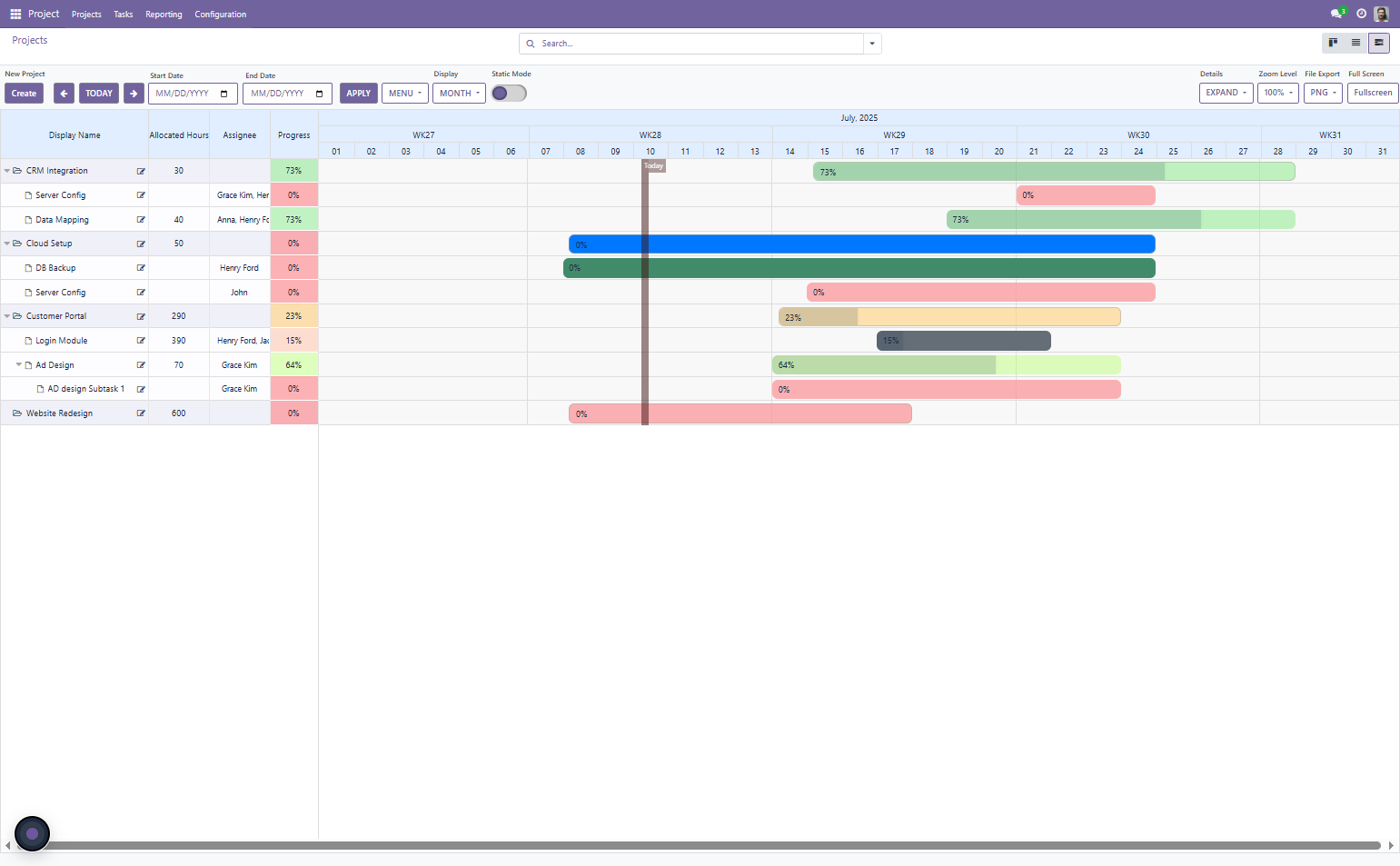
Step 2 — Open a Project and Set Dependencies
First, open any existing Odoo project and switch to the Advanced Gantt view.
Your project tasks appear immediately on an interactive Gantt timeline. Next, configure your task dependencies:
Linking tasks. Click on a task to select it, then draw a dependency arrow to the task it must precede or follow. Choose the dependency type:
- Finish-to-Start (FS): Task B cannot start until Task A finishes — the most common dependency type
- Start-to-Start (SS): Task B starts at the same time as Task A — for parallel workflows
- Finish-to-Finish (FF): Task B finishes when Task A finishes — for dependent deliverables
Add lag days to any dependency if a waiting period is required between tasks (e.g. 2 days between code review and deployment).
Test the cascade. Once dependencies are set, change the end date of an early task. All downstream dependent tasks should shift automatically. Verify that the cascade is working correctly before relying on it for planning.
Step 3 — Configure Resources and View Workloads
Once you set dependencies, navigate to the Resource Workload view within the app.
For example, this view shows your team’s capacity across all assigned tasks in a color-coded bar chart:
- Green: normal capacity
- Amber: approaching overload
- Red: overloaded — team member assigned to more hours than available
For any overloaded team member, drag tasks within the Gantt to rebalance their workload — either to a different time window or to a different assignee. As a result, changes reflect immediately in the workload view.
Find cross-project conflicts
Identifying cross-project conflicts. If you are managing multiple simultaneous projects, enable the Multi-Project Timeline View to see resource allocation across all projects on a single timeline. You then see cross-project conflicts, where the same team member is overloaded across two concurrent projects, before either project suffers.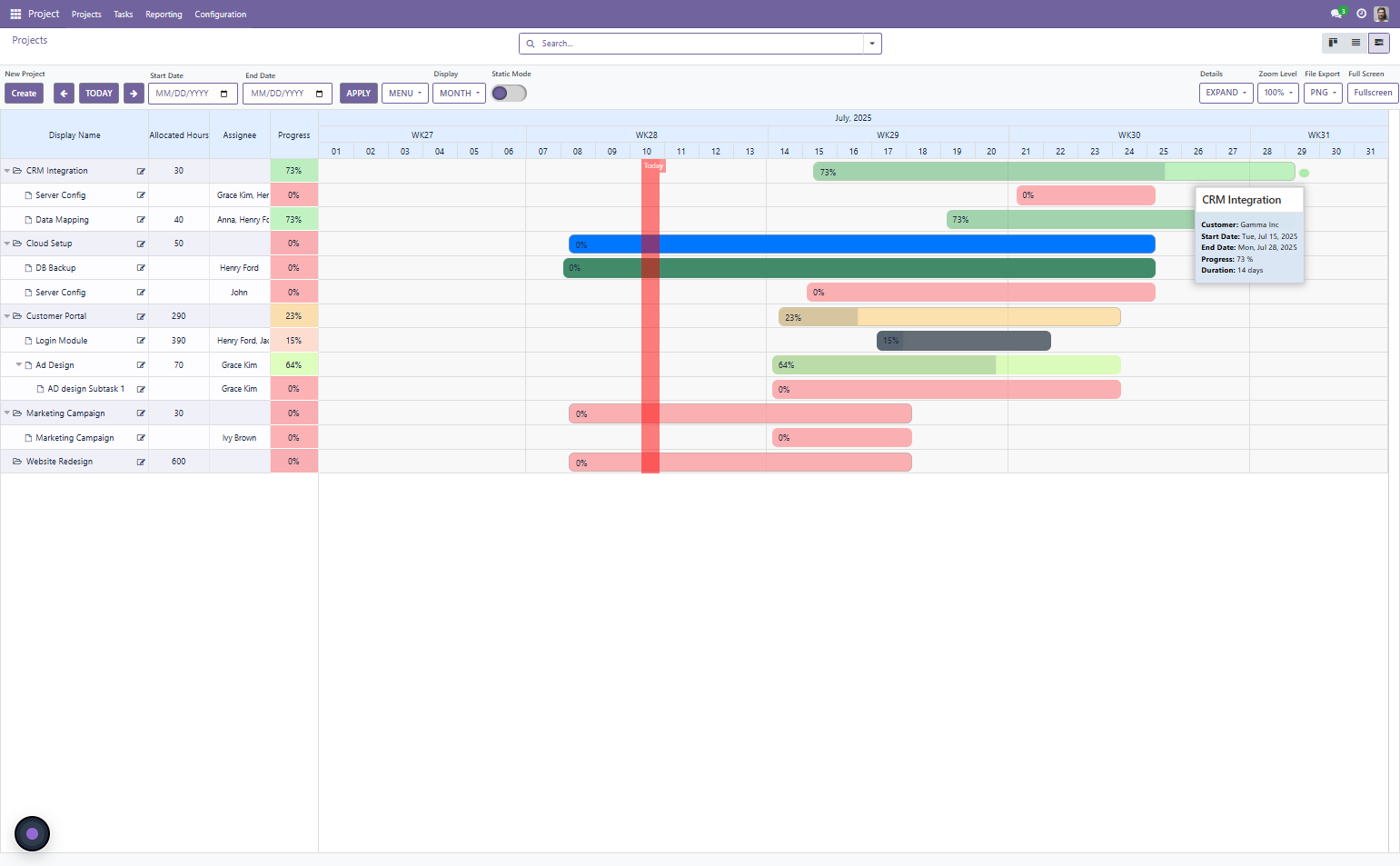
Step 4 — Save a Baseline and Enable Critical Path
Save your baseline. Once your project plan is set — dependencies configured, resources balanced, milestones placed — save the baseline from the Advanced Gantt toolbar. This captures the planned schedule at this point in time.
The baseline appears as a reference bar beneath each task on the Gantt. As the project progresses, actual dates may diverge from the plan. You then see the comparison at a glance.
Critical path in advanced Gantt scheduling
Enable critical path highlighting. Toggle Critical Path from the Gantt toolbar. The app highlights tasks on the critical path in a distinct color. These are the tasks whose delays directly impact the project end date. Non-critical tasks stay unstyled.
With critical path enabled:
- Your project manager knows immediately which task delays require escalation
- Schedule buffer becomes visible — you can see how much slack exists on non-critical paths
- Milestone review meetings focus on the tasks that actually matter
What to Check After Setup
Once your first project is fully configured, verify:
- Change one task’s end date and confirm downstream tasks cascade correctly
- Open the resource workload view and confirm all team members show correct allocation levels
- Toggle critical path and confirm the highlighted tasks match your expected critical path
- Save the baseline and confirm reference bars appear under each task
- Place a test milestone marker and confirm it is visible on the Gantt timeline
Troubleshooting — Common Questions
Which Odoo versions does the Advanced Gantt App for Project support?
The Zehntech Odoo Advanced Gantt App for Project supports Odoo v16, v17, and v18 — across all deployment types: Odoo Online, Odoo.sh, and On-Premise.
Can the app handle large projects with hundreds of tasks?
Yes. The app is built to handle multi-phase, multi-team projects with large task counts without performance degradation. The team optimized dependency cascades, resource workload calculations and critical path rendering for complex project structures.
Does the app update automatically when Odoo is upgraded?
The app is version-specific. We test and verify each release for the supported Odoo version. When you upgrade Odoo, you then install the matching version from the App Store. Lifetime access to updates for your purchased version is included.
Your advanced Gantt scheduling setup is complete
With dependencies configured, critical path enabled, resource workloads visible and a baseline saved, your Odoo project management tool now works the way complex projects require. First, date changes cascade automatically. Second, the critical path tells you where to focus. Finally, resource overloads surface before they become delays.
Custom advanced Gantt and dependency scheduling development for Odoo: $3,000–$8,000+. Zehntech Odoo Advanced Gantt App for Project: $199.00 one-time. 90 days of free support included.
Install the Odoo Advanced Gantt App for Project — $199.00 one-time
→ https://apps.odoo.com/apps/modules/18.0/zehntech_advanced_gantt_app_project
Working on Odoo?
Talk to the engineers who build Odoo systems and apps every day.