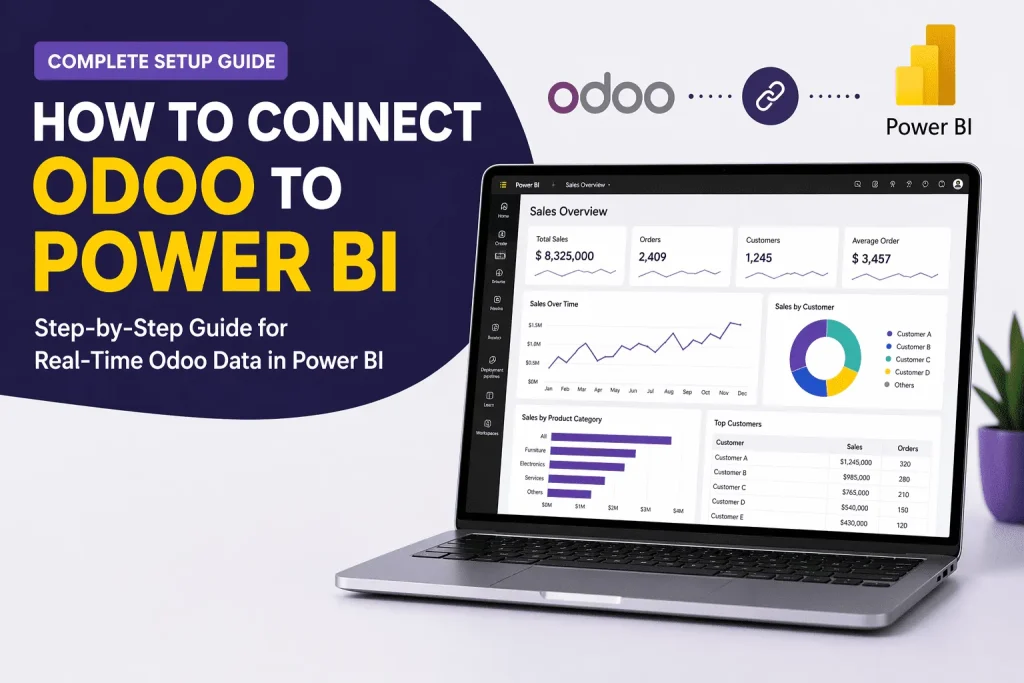
You can connect Odoo to Power BI without a consultant or a custom development project. The Zehntech Odoo Power BI Connector handles the hard parts: authentication, schema management and scheduled sync. As a result, you can focus on building dashboards.
This guide is for Odoo administrators and IT implementers who connect Odoo to Power BI for the first time. By the end, live Odoo data flows into Power BI. Choose DirectQuery for real-time access or scheduled sync for automated batch updates. Also, read about our Odoo apps.
However, you need no advanced development skills. The estimated setup time is 1–3 hours. Power BI is a Microsoft product.
Prerequisites — What You Need Before You Connect Odoo to Power BI
Confirm the following before installing:
- Odoo version: v16, v17, v18, or v19 — all supported
- Deployment: Odoo Community and Odoo.sh compatible
- Power BI: Power BI Desktop (free) is enough for DirectQuery and basic reporting. You need Power BI Pro or Premium only to share dashboards across your team or publish datasets to Microsoft Fabric.
- Odoo access: Admin rights to install modules and create API keys
- Module dependency: Discuss (mail) module — built into Odoo by default, no extra installation needed
- Time required: 1–3 hours for full setup including dashboard configuration
Connect Odoo to Power BI: Install and Authenticate (Step 1)
Install the connector from the Odoo App Store. Go to Main Apps in your Odoo backend, search for the Zehntech Power BI Connector, and install it. The module installs like any standard Odoo app, with no server restart.
Create a private app token in Odoo. Go to Settings → Technical → API Keys. Create a new API key, which is your private app token. Copy it and store it securely. With this token, Power BI authenticates with your Odoo instance without sending your password.
Configure the connector. In the connector configuration screen, enter:
- Your Odoo instance URL
- The private app token you just created
- Choose your deployment type: Standalone Power BI or Microsoft Fabric
The connector uses private app token authentication — no passwords are stored or transmitted. All connections are encrypted and access is governed by your existing Odoo security roles and permissions.
Sync: Configure Your Data Models (Step 2)
Once authentication is complete, configure which Odoo data to bring into Power BI.
Select your Odoo modules. Choose which modules to sync — Sales, Inventory, Accounting, CRM, or any custom Odoo modules you have built. The connector supports multi-model sync. As a result, you can configure all modules at once in one setup.
Choose your sync mode:
- DirectQuery — live queries run directly against your Odoo database every time someone opens a Power BI report. Data is always current, and the connector creates no export file. This mode is best for dashboards that need real-time Odoo data.
- Scheduled Export — set a cron job frequency (hourly, daily, or weekly) in Odoo’s built-in scheduler. The export then runs automatically on your schedule, with no manual triggering. This mode is best for large datasets or teams with lower real-time needs.
Map your fields dynamically. Choose which Odoo fields to expose in Power BI. Moreover, you can map and update fields at any time without disrupting existing reports or dashboards.
Create and manage tables. First, define the table structure. Then set up relationships between models, and update schemas as your Odoo configuration evolves. The connector handles schema management, so your tables stay intact when Odoo updates.
Analyse: Build Dashboards in Power BI (Step 3)
Next, open Power BI Desktop once your data models are configured.
Get Data → choose your Odoo connector. Your configured Odoo connection appears as a data source. Then select it.
Choose your mode. For example, use DirectQuery mode to query live Odoo data on every report open. Alternatively, use Import mode for scheduled datasets. Both modes work.
Build your first report. Drag Odoo fields onto the Power BI canvas, such as sales by period, inventory levels, outstanding invoices or pipeline by stage. In fact, every field you mapped in the connector is available as a Power BI dimension or measure.
Apply filters. Use Power BI’s native filter panel to apply date ranges, product categories or sales teams. You can use any other dimension from your Odoo data too. Filters work the same way as with any other Power BI data source.
Publish to Microsoft Fabric (if using Pro or Premium licence). The connector supports Eventhouse and KQL dataset publishing. You can publish your Odoo datasets directly to Microsoft Fabric for enterprise-scale Power BI deployment.
Troubleshooting — Common Questions
Does this connector work with all Odoo editions and versions?
Yes, the Odoo Power BI Connector supports Odoo v16, v17, v18, and v19 across all deployment types, including Odoo Community and Odoo.sh. No edition restrictions apply.
Do I need a paid Power BI license to use this connector?
No, because the connector works with Power BI Desktop (free) for DirectQuery and basic reporting. You need a Power BI Pro or Premium license only to share dashboards across your team or publish datasets to Microsoft Fabric.
Is my Odoo data secure when connecting to Power BI?
Yes, because the connector uses private app token authentication, so it stores or sends no passwords. All connections are encrypted. Also, your existing Odoo security roles and permissions govern access.
What to Do Next
After your first live connection is working:
- Add a second data model. For example, if you started with Sales, add Inventory or Accounting to the same connector configuration
- Also, set up continuous refresh for datasets that need to stay current throughout the working day
- Finally, explore Microsoft Fabric integration if your organisation uses Power BI Premium for enterprise-scale deployment
- Contact Zehntech support if you hit schema issues or connection errors. Every purchase includes 90 days of free support.
Connect Odoo to Power BI Starts Here
You do not need a consultant or a custom development project to connect Odoo to Power BI. The Zehntech connector handles authentication, schema management and scheduled sync. As a result, you can focus on the dashboards your team needs.
Power BI consultant setup: $150/hr × 40 hours = $6,000. The Zehntech Odoo Power BI Connector: $122.09 one-time. 90 days of free support included.
Install the Odoo Power BI Connector — $122.09 one-time
→ https://apps.odoo.com/apps/modules/19.0/zt_odoo_powerbi_connector
Not sure if you need this? Read why manual Odoo exports break Power BI reporting → http://why-manual-odoo-data-exports-are-breaking-your-power-bi-reporting/
Working on Odoo?
Talk to the engineers who build Odoo systems and apps every day.