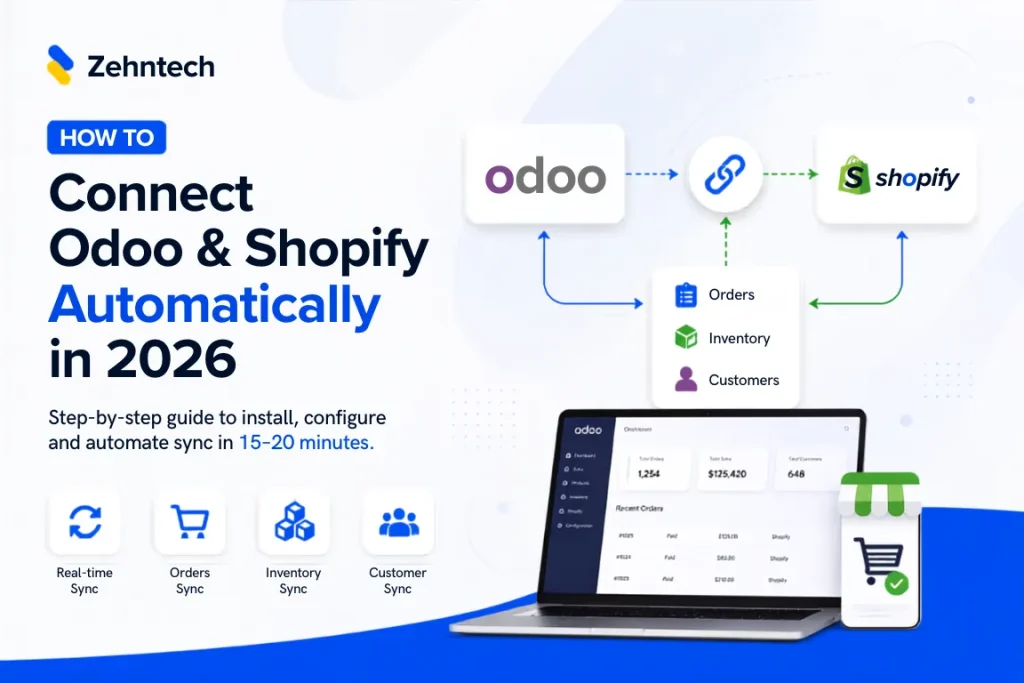
Do you run Shopify for your storefront and Odoo for everything behind it, like inventory, accounting and fulfillment? Then you know the two don’t talk to each other out of the box. Below, we show how to connect Odoo and Shopify. As a result, orders, stock and customer data sync automatically, with no manual export or import step.
For a breakdown of which connector option makes sense for your situation (pre-built vs. custom vs. manual), see our comparison of Shopify-Odoo connector options in 2026. We assume you have already decided to install the Zehntech Odoo Shopify Connector. The guide then walks through the actual setup. You can also explore our Odoo apps.
What You Need Before You Start
- An active Odoo instance (v17, v18, or v19; Odoo.sh and on-premise are both supported)
- A Shopify store with admin access
- Server access to run one command:
pip install ShopifyAPI - About 15–20 minutes for first-time setup (most customers are fully operational within one day, including data migration)
Install the Connector to Connect Odoo and Shopify (Step 1)
- In your Odoo instance, go to the Apps menu and search for “Shopify Connector.” You can also install it from the Odoo App Store listing.
- On your server, run:
pip install ShopifyAPI
This installs the Python dependency the connector uses to communicate with Shopify’s API. - Once installed, a new Shopify menu appears in your Odoo instance.
Authenticate and Connect Odoo and Shopify (Step 2)
- In Odoo, go to Shopify → Configuration → Settings.
- Enter your Shopify store URL (e.g.,
yourstore.myshopify.com). - Generate an API access token from your Shopify Admin. Go to Settings → Apps and sales channels → Develop apps → Create an app. Then give it API access to Products, Orders, Inventory, and Customers.
- Paste that token into Odoo’s connector settings and click Test Connection. A green confirmation means Odoo and Shopify now talk to each other securely via API. No data has synced yet. This step only confirms the connection works.
Configure What Syncs Automatically (Step 3)
This step makes the connection “automatic”, so you do not have to trigger it manually each time:
- Under Shopify → Configuration → Sync Settings, enable:
- Product sync (two-way — changes in either system reflect in both)
- Order import (new Shopify orders automatically create matching Odoo sales orders)
- Inventory sync (stock levels update in real time in both directions, so you avoid overselling a product tracked in both systems)
- Customer sync (new Shopify customers automatically become Odoo contacts)
- Set your sync frequency. We recommend real-time (webhook-based) over scheduled polling. With it, an order placed on Shopify appears in Odoo within seconds, not on the next scheduled run.
- If you run multiple Shopify stores, repeat the connection step for each store. The connector supports unlimited multi-store connections from a single Odoo instance.
Verify Your First Live Sync (Step 4)
- Place a small test order on your Shopify storefront (or use Shopify’s test/draft order feature).
- Check Odoo’s Sales app. The order should appear within seconds if webhook sync is on.
- Confirm the inventory count decremented correctly in Odoo’s Inventory app.
- If the order doesn’t appear, check Shopify → Logs in Odoo for the specific error. The most common first-setup issue is an incorrectly scoped API token, which misses the Orders or Inventory read/write permission.
Troubleshooting Common Setup Issues
- “Connection failed” on Test Connection: Double-check the store URL format (no
https://, no trailing slash). Also confirm the API token hasn’t expired. - Orders import but inventory doesn’t sync: Confirm you enabled the Inventory sync toggle separately from Order import. These are independent settings.
- Duplicate customer records: Enable “Match by email” in Customer sync settings. This stops duplicate contacts when the same customer orders from multiple stores.
What to Do After You Connect Odoo and Shopify
Once you verify the connection, you do not need to do anything further. Here the “automatic” part takes over. New orders, stock changes and customer records keep syncing without manual work. Most teams check back after their first week to confirm sync accuracy. After that, they rarely touch the settings again.
Are you still deciding between a pre-built connector, custom development or staying manual? Our full comparison guide breaks down the cost and trade-offs of each option, including real pricing.
Not sure your setup is configured optimally? Book a free 20-minute Shopify-Odoo Integration Audit and we’ll review your current sync settings at no cost.
Book a Free Shopify-Odoo Integration Audit →
Working on Odoo?
Talk to the engineers who build Odoo systems and apps every day.