Odoo Docker Compose is the quickest way to install Odoo without trouble. Everyone wants to install software easily and quickly. However, nobody wants to get trapped by dependency issues that make the installation fail. Odoo installation has many such issues.
Therefore, we use Docker to deploy applications and avoid them. With Docker, users can run Odoo instances in any environment without worrying about dependencies or setups.
In this article, we learn how to configure Odoo with Odoo Docker Compose. You can also read about our Odoo implementation services.
Docker
Docker is an open-source platform as a service (PaaS) that lets you build, deploy, and run programs in separate containers. Therefore, we can install and run software without worrying about the machine’s configuration or dependencies.
Docker Images
A Docker Image is a file that contains instructions for building and running containers on the Docker platform. To put it another way, it is a snapshot of a file system.
Docker Hub
Docker Hub is a cloud-based registry. In it, we store and share images.
First, to deploy Odoo, we use the official Odoo and Postgres Docker images. Both are available on Docker Hub.
Postgres image: As we know, Odoo uses Postgres as a database to store and manage data. Postgres images are available on Docker Hub.
Odoo Image: An official Odoo image is available on Docker Hub. You can use it to install and run Odoo.
Docker Compose
Docker Compose is a tool for defining and running multi-container Docker applications. Also, it manages our web application. It uses YML files to configure application services. Moreover, it can extend selected services as needed. You can start or stop all services with a single command.
Docker Compose is also already available in Docker Desktop on Windows. Therefore, Windows users do not need to install Compose separately.
To deploy Odoo with Docker Compose, we need two containers: Odoo and Postgres. We create a docker-compose file that includes both. As a result, we can start and stop both containers with one command.
How to Use Odoo Docker Compose to Run Odoo?
First, create a directory for the project:
- Keep your custom-addons/extra-addons inside this directory.
- Create a YML file for docker-compose (say docker_compose.yml)
Write Instructions into the Odoo Docker Compose File
version: “3.1”
services:
db:
image: postgres:latest
restart: always
ports:
– 5444:5432
environment:
POSTGRES_USER: odoo
POSTGRES_PASSWORD: odoo
volumes:
– pg-odoo: /var/lib/postgresql/data
odoo:
image: odoo:latest
ports:
– 8069:8069
environment:
– HOST=db
– PORT=5432
– USER=odoo
– PASSWORD=odoo
volumes:
– ./extra-addons:/mnt/extra-addons
– data:/var/lib/odoo
depends_on:
– db
volumes:
pg-odoo:
data:
This YML file includes two services. The first is DB, which runs the PostgreSQL container on port 5444. The second is Odoo, which runs the Odoo container on port 8069.
Also, the Odoo and PostgreSQL containers use environment variables to configure themselves, like POSTGRES_PASSWARD, HOST and USER.
Next, to add custom addons or extra-addons, create a custom directory. Then mount this directory as written in the odoo service:
– ./extra-addons:/mnt/extra-addons
We create two volumes for both services. They store container data, so we can retrieve it at any time in the future.
Finally, the depends_on setting in the Odoo service says that Odoo depends on another service. Here, the DB service starts first, and then the Odoo service.
After these steps, we run the docker-compose command to start the YML file:
docker-compose -f <YML file name> upNow, we can access it from http://localhost:8069
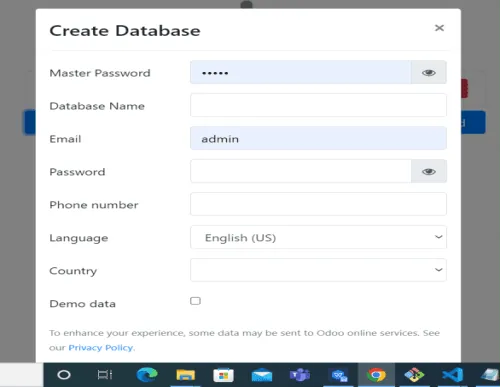
After you open localhost on that port, you see the form above to configure the database. We fill in this form with the database name, the master password for the database, the email, the password and so on.
Conclusion
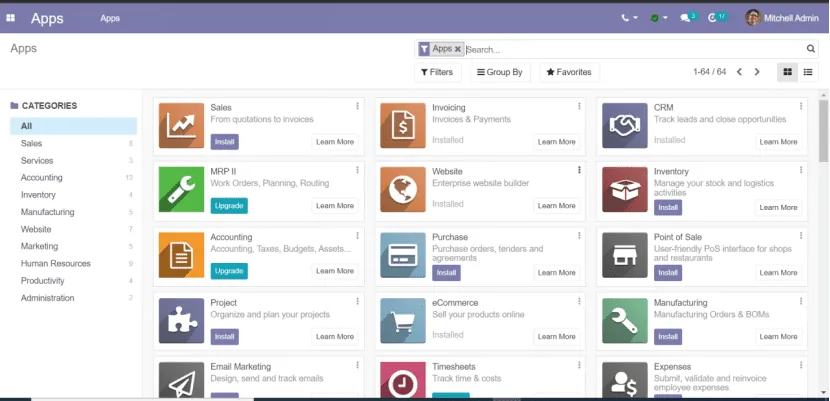
Install the application from the application list and launch Odoo according to your needs.
Configuring Odoo with Docker makes installing an Odoo instance smooth and easy. You do not have to worry about dependencies, libraries or configuration. We can run Odoo in any environment.
Working on Odoo?
Talk to the engineers who build Odoo systems and apps every day.