
We often face challenges in managing files while working in a team. Many times, the changes we make to the files get lost. In a team, these changes often get overwritten. These problems hurt smooth working and file management. Git, a version control system, has come to the rescue and removes these problems. But before we go into the details of Git, let’s first understand what a version control system is.
What Is a Git Version Control System?
Version control is a system that records changes to a file or set of files over time. This way, we can recall a specific version later. For example, a developer uses version control to record changes to the software source code files. However, we can use version control for any type of file.
There are two types of version control systems: Distributed Version Control System and Centralized Version Control System.
Git is the most commonly used distributed version control system (DVCS). Every user has a local repository, and then the changes go to a central repository. Git also records only the changes. Hence, it reduces the chances of others overwriting code. Due to this feature, Git is very useful for working in a team and tracking changes to files.
Git makes it easy for developers on a team to work on different features of a project. However, users at times do not know the complete set of Git features. As a result, they cannot use it efficiently.
Common Challenges Without a Git Version Control System
While working in a team, we come across different challenges. The most common are:
-
- What’s deployed in production differs from what’s in the master branch. This happens because all the developers work on the master branch, and the production team keeps making progress after the code is deployed. Now suppose something goes wrong in production and needs a hot fix. One of the developers in first level support checks out the code of the master branch, adds the hot fix and deploys the changes. But what if he finds a new feature in the application when he tests the hotfix locally? He confirms with the team and learns that the new feature is still in testing. The team cannot release it at the moment. So, it becomes very difficult for the developer to make a hotfix release. First, he has to revert the changes of other developers after the last deployment. Only then can he add his hotfix.
-
- It is difficult for the reviewer to review a feature change when the developers add more than one feature before the review.
Review and Deployment Problems
-
- A bug in one feature can suspend the whole deployment.
-
- It is difficult to manage the improvements and bug fixes in a feature. Meanwhile, they might affect other team members in their work.
-
- It is difficult to manage the work done for a task assigned to a developer. For example, a task management application like JIRA can take the working information, such as the branch name or pull request, from Bitbucket. We can also use the JIRA automation plugins to move a task to different statuses automatically, based on the status of the work in Bitbucket.
How the Git Version Control System Solves These Challenges
These seem like big challenges, but Git addresses them easily. You will not face the problems above if you use Git in a standard way. Git’s Branching feature fixes all of them. A Git branch is also very useful for managing different versions of the same software for different clients. For instance, one software can run on different servers with different versions.
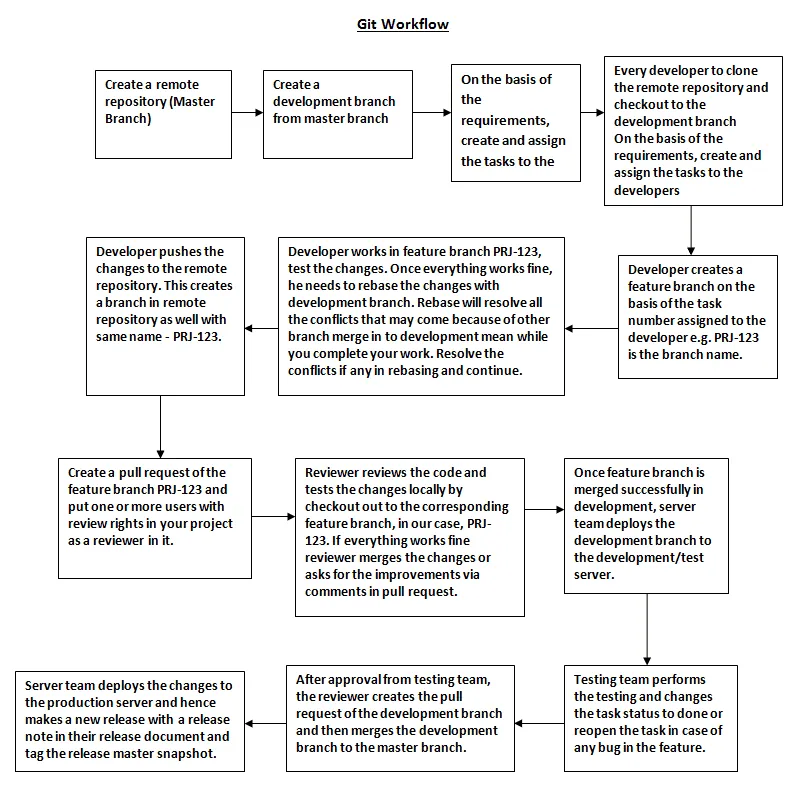
The best practice with Git is to create branches and get the reviewer to verify your task code. Then merge the branch into the master branch. This way, master always has the code that is in production. Once the team verifies and merges your branch into master, you can deploy the changes to production immediately.
Using a Development Branch in a Git Version Control System
Every software has a development server for testing. Once testing verifies a task, we merge it into the master branch. So we should also have a branch that represents the code on the development server. The best practice is to always create a development branch from the master branch. Then create all the feature branches from the development branch instead of the master branch. Once the tester and the reviewer approve the work in a feature branch, merge it back into the development branch.
Now, to test the changes of a branch, the reviewer needs to verify the code. Then the reviewer tests the feature branch locally. If everything works fine, he merges the changes into development and deploys them to a development server. After this, the testing team tests the feature manually and through their automation processes. When the testing team gives the success flag, you can merge the feature branch and deploy it to production. You can read more about Git on the official Git site.
The basic Git commands involved in the above process are –
The basic Git commands involved in the above process are –
-
- Open your favourite browser and insert this URL (ip_address/zabbix)
- If you see this Welcome Page then click `Next step` button
- Check pre-requisites and click `Next step` button
-
- To clone a project – Git clone <remote-repository-url> e.g. git clone http://abc.git
-
- If you have a project on local machine and if you want to add it to a remote repository, that you have created on a remote service or remote server. Then cd to your project directory on your local machine and run the following commands – Git init – Git remote set-URL origin <remote-repository-url>e.g. git remote set-URL origin http://abc.git
Working with Branches in Git
-
- To checkout to a branch – Git checkout <branch-name> e.g. git checkout development
-
- To create and checkout to a new/feature branch (before this please make sure to run git pull and git reset –hard origin/master to clean all the changes to master/development branch you made locally. There should not be any changes in the master/development branch, changes should be made to these branches via merge only) – Git checkout –b <new-branch-name> e.g. git checkout –b PRJ-123
Committing and Pushing Changes
-
- To add changes to the staged area from the working area – Git add <files-to-add-to-staged-area> e.g. git add README.md
-
- To commit changes to a remote repository – Git commit -m “<commit-message>” e.g. git commit –m “added readme file”
-
- Pull changes to a branch (take updates from remote repository) – Git pull
-
- Rebase changes from parent branch (before this please checkout to the parent branch and update it via git pull and then again checkout to your feature branch) – Git rebase <parent-branch-name> e.g. git rebase development, Git rebase –continue
-
- Generally, we should always have only one commit in our pull request, in case there are multiple commits from your side then before pushing changes to the remote repository you can merge all the commits into one using squash all the commit at the time of git rebase, please follow the below steps while merging all commits into one commit Git rebase –i <parent-branch-name> e.g. git rebase -i development, it will open a file in terminal.
-
- Press i to enter insert mode and change all the # commit to squash except the first. Press Esc and :wq to save it. It will open a comment file that you want to consider after merge all commits into one. Edit it if you want to via entering edit mode as mentioned above or just press :wq and it will merge all commits into one. After this, you can push your changes to the remote repository. If you see in remote repository in your branch, it will only show one commit and on click of that commit, you can see the commit message that you put above while rebasing interactively.
-
- Push changes to the remote repository – Git push
- If you are pushing to a branch that does not exist in the remote repository then you need to run the following command Git push –set-upstream origin/<branch-name> e.g. git push –set-upstream origin/PRJ-123
Thus, we can see that a Git version control system is very helpful in managing problems related to working in a team. For help with your software projects, see our custom software services. It is one of the best version control systems that can be used to manage your files. All you need is a proper understanding and you are good to go.
Need help with your infrastructure?
We build and run custom systems on AWS, Azure and Docker.